When Your Desk Light Becomes the Problem
Picture the scene: it’s 9pm, the room is dark, your stream is live, and your overhead light is bouncing off your monitor like a spotlight. You turn it off — now you’re squinting at a bright screen surrounded by absolute darkness, and your eyes ache within the hour. You try a desk lamp angled off to the side, but that throws shadows across your keyboard and creates a distracting reflection you can see in your webcam feed. You try nothing at all, and that flat black-versus-bright-screen contrast is what optometrists warn you about.
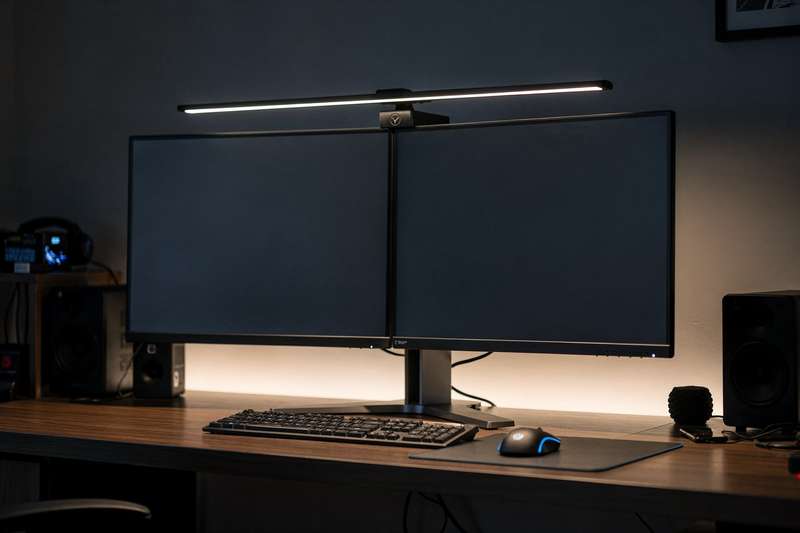
This is the exact scenario monitor light bars were designed to solve. They mount directly on top of your monitor and cast light downward onto your desk surface — illuminating your keyboard, notepad, and peripherals — while their asymmetric optics deliberately stop light from hitting the screen itself. No glare, no reflection, no bloom on camera. For streamers, the benefit doubles: your face gets even ambient fill light, your screen stays clean, and your setup looks polished rather than cobbled together with a ring light pointed at the ceiling.
The catch is that not every light bar delivers on this promise equally well. Budget options sometimes leak light upward onto the screen. Others have clunky controls that are disruptive mid-stream. A few just clip poorly on thin modern bezels and rock around during sessions. This guide cuts through all of that so you can make one decision and get it right.
How These Picks Were Evaluated
Every pick in this guide was assessed against five core criteria. First, optics quality: how well does the asymmetric lens design prevent light from hitting the screen surface? Second, light spread: does it cover a full desktop workspace evenly, or does it pool in the centre? Third, control usability: can you adjust brightness and colour temperature without interrupting what you’re doing? Fourth, monitor compatibility: does it fit flat and curved monitors, thin bezels, and monitors of different thicknesses? Fifth, build quality relative to price tier: the clip mechanism, cable management, and day-to-day durability.
Reviewer feedback patterns across hundreds of verified UK Amazon buyers were cross-referenced to identify recurring complaints and consistent praise points. The goal was to find products that perform reliably in real dark-room use, not just in controlled studio comparisons. Each pick below represents a specific use case, so you should find one that fits your exact setup rather than defaulting to the most expensive option.
Best Overall: BenQ ScreenBar Monitor Light
The BenQ ScreenBar Monitor Light has been the reference point for this category since its launch, and it still earns that status for one specific reason: the asymmetric optical lens is genuinely engineered rather than approximated. Where budget alternatives use a basic diffuser that mostly points light downward, BenQ’s patented optical design creates a sharp cutoff line — light floods the desk surface and stops before it touches your screen. In a completely dark streaming room, this matters more than any other single feature.
The build quality matches the optical engineering. The weighted clip uses a counterbalance system that keeps the bar stable on monitors ranging from flat ultrawides to slightly curved panels, without needing to clamp tightly enough to damage a thin bezel. It’s powered over USB, so you can run it from your monitor’s USB-A port with no wall socket required — one less cable on your desk.
Control is via a touch bar on the top of the unit. You can tap through colour temperature presets from warm (around 2700K, good for relaxed evening streams) to daylight-cool (up to 6500K, better for productivity or morning sessions), and there’s a built-in ambient light sensor that auto-adjusts brightness as your room conditions change. For streamers who go from a sunlit afternoon into a dark evening session without touching settings, that auto-dimming feature removes a surprisingly common annoyance.
Where the BenQ ScreenBar falls short is curved monitor compatibility. If your monitor has a significant curve — anything tighter than a typical 1500R ultrawide — the clip geometry doesn’t seat flat and the bar can tilt. It also doesn’t include a wireless remote, meaning any manual adjustment requires reaching up to the unit. That’s a minor friction point during a live stream, though the auto-sensor reduces how often you actually need to do it.
For most streamers with a flat or lightly curved monitor, this remains the cleanest, most reliable solution in the category. The optics do what they claim, the build lasts, and the auto-dimming sensor earns its keep in variable lighting conditions.
Best Premium Pick: BenQ ScreenBar Halo
The BenQ ScreenBar Halo takes the core ScreenBar formula and adds something genuinely useful for dark-room streamers: a rear-facing backlight that illuminates the wall behind your monitor. This bias lighting reduces the contrast ratio between your bright screen and the dark room around it — which is exactly what causes that particular type of eye fatigue you feel after two hours of streaming in a blacked-out room.
The setup is straightforward. The bar mounts the same way as the standard ScreenBar, but the rear LED strip runs along the back edge, casting a soft glow onto the wall. You control both the front desk light and the rear backlight independently via a wireless dial controller that sits on your desk — rotate for brightness, press and rotate for colour temperature. That wireless dial is one of the more satisfying control mechanisms in this product category, and it means you’re never reaching up to touch a bar mid-stream.
The difference the rear light makes in practice depends on your room setup. If your monitor is close to a wall or a dark backdrop, the ambient glow is subtle and pleasant — it shows up nicely on a webcam and softens the harsh screen-versus-darkness contrast. If your monitor sits away from any wall, the rear light diffuses into the room without any reflection surface and the effect is less pronounced. Worth checking your specific setup before committing to the premium tier.
The front optics carry the same asymmetric lens design as the standard ScreenBar, so glare control is equally strong. You also get the ambient light sensor for auto-brightness adjustment. The clip is the same weighted counterbalance design, with the same caveat about tight-curve monitors.
The tradeoff is that this is the most expensive option in this guide by a significant margin. For streamers who spend long sessions in dark rooms and want both screen-area lighting and comfortable background ambience, the Halo justifies its place at the top tier. For casual streamers or anyone who streams in a room with some ambient light, the standard ScreenBar delivers most of the practical benefit at a lower outlay.
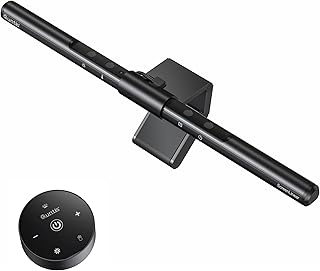
Best Budget Pick: Quntis Monitor Light Bar
The Quntis Monitor Light Bar is the most credible budget entry in the category because it doesn’t compromise on the one feature that actually matters in a dark streaming room: glare control. The asymmetric lens design keeps light directed downward onto your desk, and in practice it performs well enough that most streamers won’t feel the gap between this and the BenQ unless they’re doing a direct A/B comparison.
The brightness range and colour temperature controls work via a touch strip on the top of the bar. You get stepless dimming — so you can set brightness to exactly where you want it, rather than cycling through fixed steps — and three colour temperature modes covering warm, neutral, and cool white. There’s no auto-dimming sensor, which means you’ll need to manually adjust if your ambient light changes significantly, but for a fixed dark-room streaming setup that stays at the same settings every session, this is rarely a problem.
The clip fits monitors from roughly 10mm to 30mm thick, which covers the vast majority of flat desktop monitors. It’s not the most polished clip mechanism available — on very thin bezels (some ultraslim IPS panels, for instance) it can feel slightly front-heavy — but it holds securely once seated. The bar itself is powered by USB-A, runs without any noticeable flicker, and the build quality is better than you might expect at this price tier.
Where the Quntis shows its budget credentials is in consistency. The beam distribution isn’t quite as even as the BenQ — there’s a modest hot spot in the centre of the illuminated area — and the colour temperature settings are preset modes rather than a fully continuous range. Neither of these will matter much in a normal streaming setup, but they’re worth knowing about if you’re particular about lighting precision.
For anyone entering this category for the first time, or for a secondary monitor in a multi-screen streaming setup where budget matters, the Quntis Monitor Light Bar punches well above its price point. It handles the core job — desk lighting without screen glare — competently enough that you won’t feel the need to upgrade unless you specifically want auto-dimming or a wireless remote.
Best for Wireless Control: Xiaomi Mi Monitor Light Bar
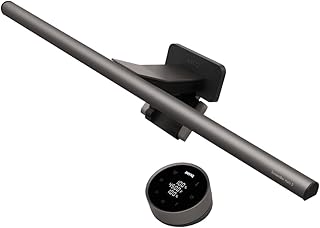
The Xiaomi Mi Monitor Light Bar takes a different approach to controls: instead of touch buttons on the bar or a traditional remote, it ships with a small wireless dial controller that sits on your desk like a hockey puck. Rotating the dial adjusts brightness; pressing and rotating switches it to colour temperature adjustment mode. It’s tactile, intuitive, and something you can operate without looking at it — which matters when you’re in the middle of a live stream and need to tweak your lighting without breaking eye contact with your audience.
The magnetic mount is another thoughtful feature. Rather than a counterbalance clip, the bar attaches to a magnetic base that sits over the top of your monitor. Installation takes about thirty seconds and removal is just as clean. For streamers who move monitors around, or who share a desk between a work setup and a streaming setup, this ease of repositioning is a practical benefit rather than a gimmick.
Light quality is strong. The bar produces clean, flicker-free output across its brightness range, and the colour temperature runs from warm to daylight-cool in a way that pairs well with dark room streaming. The USB-C power input is a small upgrade over the USB-A connectors on older competing bars — neater cabling if your monitor hub has USB-C available.
The main limitation is that there’s no auto-dimming sensor, so brightness is always manually controlled. For streamers in fixed dark-room setups this is fine, but if your streaming space has variable natural light during daytime hours, you’ll need to adjust manually each session. The wireless dial makes that adjustment quick and pleasant, at least. There are also occasional reports from reviewers that the magnetic mount can shift slightly on very thick monitor bezels — worth checking your monitor’s top-edge depth before ordering.
The Xiaomi Mi sits at a mid-range price point between the budget Quntis and the premium BenQ ScreenBar. If the tactile wireless dial controller appeals to you more than an auto-dimming sensor, it’s a well-executed option in that space.
Best for Curved Monitors: BenQ ScreenBar Plus
The BenQ ScreenBar Plus is essentially the ScreenBar with a significant upgrade to the control method: it includes a wired dial controller that sits on your desk, with the same rotate-for-brightness, press-and-rotate-for-colour-temperature interface as the Xiaomi’s wireless dial. The critical difference from other BenQ models is the clip geometry, which is designed to accommodate slightly curved monitors more reliably than the standard ScreenBar.
The wired controller keeps things simple from a connectivity standpoint — no Bluetooth pairing, no battery to replace, just a cable that runs from the bar down to the dial on your desk. For a permanent streaming desk setup where everything is cable-managed anyway, the wired nature isn’t a drawback at all. The dial itself has good tactile feedback and is accurate enough to dial in a specific brightness level by feel alone.
The front optics use the same asymmetric BenQ lens as the rest of the lineup — so glare control is as strong here as in the original ScreenBar. You get the ambient light sensor for auto-dimming, and the same wide colour temperature range. The USB power delivery is from the monitor’s USB port, keeping the setup tidy.
Where it differs from the standard ScreenBar is the clip design. The ScreenBar Plus uses a slightly revised mount that tolerates gentle curves — say, a 1800R or 2000R panel — without the bar tilting noticeably. It won’t work on aggressive gaming monitor curves (1000R), but for the typical widescreen or ultrawide curved monitor that a streamer might have as their main display, it seats more reliably than its sibling models.
The price sits in the mid-to-premium range, above the standard ScreenBar. Whether the desk controller dial justifies that premium over the touch-only ScreenBar depends on how often you adjust your lighting during a session. If you’re constantly tweaking brightness as scenes change on your stream, the dial is worth having. If you set it once and leave it, you may not need to pay up for it.
Best Ultra-Budget Entry: Quntis LED Monitor Light Bar with Remote
The Quntis LED Monitor Light Bar with Remote adds a small wireless remote to the Quntis family formula, giving you brightness and colour temperature control from your desk without touching the bar itself. At the lower end of the price range, this combination of remote control and solid basic optics represents decent value for a first monitor light bar purchase.
The remote is a compact credit-card sized unit that controls brightness steps and cycles through colour modes. It’s not a dial — it’s a button-based remote — which means you’re clicking through increments rather than dialling continuously. For most streaming setups where you set two or three favourite lighting presets and switch between them, this works well enough. For precise stepless adjustment, the main Quntis touch bar offers more control.
Build quality is a step below the standard Quntis in terms of tactile feel — the plastics have a slightly cheaper finish — but the light output itself is comparable. The asymmetric optics keep glare off your screen adequately at normal operating distances, and the colour temperature range covers the key points from warm evening light to cooler productivity light.
The honest limitation here is consistency. A small number of reviewers note that the remote pairing can be fussy if the bar loses power and needs re-pairing, and the clip mechanism on very thin bezels doesn’t inspire confidence. For a standard 24-inch or 27-inch monitor with a typical bezel depth, neither issue is likely to surface regularly.
This is a solid option if you specifically want remote control but aren’t ready to spend up to the Xiaomi or BenQ ScreenBar Plus tier. It handles dark-room streaming basics — downward-directed light, no screen glare, adjustable warmth — and the remote adds genuine convenience during live sessions.
Best for Multi-Monitor Setups: Quntis Monitor Light Bar Pro
The Quntis Monitor Light Bar Pro offers a longer bar profile than the standard Quntis model, making it better suited to ultrawide and widescreen monitors where a shorter bar leaves the outer edges of your desk less well-lit. For streamers running a 34-inch or larger ultrawide as their primary display, this matters in practice — a too-short bar creates a bright centre and dim outer zones that look uneven on camera.
The longer physical length also means the light spread across your desk is more even. You get continuous stepless dimming, multiple colour temperature settings adjustable from the touch controls on the bar, and a USB-powered design that draws from your monitor’s USB hub. The clip mechanism is updated compared to the basic Quntis and handles both flat and gently curved ultrawide monitors.
The optics are asymmetric in the same way as the rest of the Quntis range — light goes down, not forward. At the wider spread, there’s still good glare control at typical monitor-to-desk angles. Some reviewers with very aggressive desk configurations (monitor very close to the user) have noted a slight brightness at screen edges, but this is a geometry problem with any bar at extreme angles rather than a flaw specific to this model.
There’s no auto-dimming sensor and no wireless remote in the base configuration. Touch controls on the bar are the only interface. For a permanently configured streaming desk where you set brightness once and leave it, this is fine. For a setup where you’re regularly adjusting as content changes, you’ll find yourself reaching up to the bar more than you might like.
For ultrawide monitor owners who’ve tried a standard-length light bar and found the coverage uneven, this is the most practical solution without jumping to the premium BenQ tier. It covers the broad desk area properly and keeps the streaming setup looking clean and evenly lit.
What to Look For in a Monitor Light Bar for Dark Room Streaming
- Asymmetric optics, verified: The single most important feature. A true asymmetric lens directs all light forward-and-downward, with a hard cutoff that stops light from reaching the screen surface. Look for brands that explicitly describe this in their specifications — bars that just say “anti-glare” without explaining the optical mechanism often rely on diffusion rather than direction, which means some light still reaches the screen.
- Colour temperature range: For dark-room streaming, a warmer setting (2700K–3000K) reduces harshness and is easier on your eyes during long sessions. A cool setting (5000K–6500K) is better for colour-accurate work. Bars with a wide, continuously adjustable range give you flexibility across different streaming scenarios — gaming, creative work, face-to-camera content.
- Auto-dimming sensor: If your streaming room has any variable light — daylight through a window, monitor brightness changes between scenes — an ambient light sensor saves you from constant manual adjustment. It’s primarily a BenQ feature at present, but worth the premium if your environment isn’t completely fixed.
- Control method: Touch controls on the bar work fine for set-and-forget setups. A wireless dial or remote is significantly more useful if you’re adjusting brightness during a live stream. Consider how often you’ll actually change settings before deciding whether remote control is worth paying for.
- Monitor compatibility: Check the clip mechanism’s stated thickness range against your monitor’s bezel depth. Flat monitors are almost universally compatible. Curved monitors — particularly tighter gaming curves — can cause bars to tilt unless the product specifically states curve compatibility. Measure your bezel before buying.
- Bias lighting for long sessions: If you stream for two hours or more in a completely dark room, a bar with a rear-facing backlight (like the BenQ ScreenBar Halo) significantly reduces the contrast stress that causes eye fatigue. The effect is cumulative — you may not notice it in a thirty-minute session, but over a long stream it’s a meaningful comfort improvement.
- USB power source: Most bars draw power from your monitor’s USB-A port, which keeps cables tidy. Check that your monitor has a functioning USB hub port before assuming this will work out of the box. A USB-C input is a minor bonus if your monitor hub supports it.
Verdict
For the majority of UK streamers setting up or refining a dark-room streaming space, the BenQ ScreenBar is the pick to make once and stop thinking about. The asymmetric optics are the most reliably effective in the category at preventing screen glare, the auto-dimming sensor handles variable lighting without requiring any manual adjustment, and the build quality means it’ll outlast several upgrades to other parts of your setup. It isn’t the cheapest option, but it removes every common frustration this category produces — tilting clip, screen reflection, fiddly controls — in a single purchase.
If your budget doesn’t stretch that far, the Quntis Monitor Light Bar handles the core job — glare-free desk lighting — with competence that will satisfy most streamers. The gap between Quntis and BenQ only becomes apparent in edge cases: variable lighting, tight curves, or very precise brightness control. For a fixed dark-room setup with a standard flat monitor, the Quntis closes that gap considerably.
For anyone spending long sessions in a completely dark room, the BenQ ScreenBar Halo’s rear bias lighting adds a comfort layer that’s hard to replicate with any other single product. It’s the premium choice for a reason, but the reason is real rather than cosmetic.
This guide reflects independent editorial research based on publicly available specifications, verified buyer feedback patterns, and category analysis. No product featured here was included as a result of paid placement or commercial arrangement.
Quick Comparison Table


FAQ
Will a monitor light bar completely eliminate glare in a dark room?
A monitor light bar with a true asymmetric optical design will eliminate glare caused by the light bar itself — that’s what the optics are engineered to do. It won’t eliminate glare from other light sources in the room, such as windows or overhead lights. In a properly darkened streaming room, a quality light bar should produce no visible reflection on your screen at all.
Can I use a monitor light bar on a curved gaming monitor?
Some bars handle gentle curves — typically 1800R or above — with no significant problems. Tighter gaming monitor curves (1000R, 1200R) cause most clip designs to tilt or seat at an angle, which affects both aesthetics and light direction. The BenQ ScreenBar Plus has the best clip geometry for curved monitors in this guide; always check the product’s stated compatibility against your monitor’s curve radius before purchasing.
Does a monitor light bar help with eye strain during long streaming sessions?
Yes, for two distinct reasons. First, it reduces the contrast between your bright screen and the dark area around it, which is a primary driver of the kind of eye fatigue you feel after a long dark-room session. Second, if the bar includes a rear bias light (like the BenQ ScreenBar Halo), it softens that contrast further by adding ambient light behind the monitor. Colour temperature also matters — warmer settings in evening sessions reduce the stimulating effect of blue-heavy light.
Do monitor light bars show up as a reflection in my webcam feed?
With a bar that has proper asymmetric optics correctly installed, no — the light is directed forward and down, away from the screen, so there’s nothing to reflect into a webcam. What you may notice instead is a pleasant improvement in the quality of your webcam image, because the desk-directed light provides natural face-fill lighting that removes the underlit or harshly shadowed look common in dark streaming rooms.
What’s the difference between a monitor light bar and bias lighting strips?
A monitor light bar primarily illuminates your desk surface below the monitor, which reduces eye strain from screen-versus-desk contrast and improves keyboard and desk visibility. Bias lighting strips attach to the back of the monitor and illuminate the wall behind it, reducing screen-versus-room contrast. Some bars (like the BenQ ScreenBar Halo) combine both. For streaming, the desk-facing bar is more immediately useful; the rear bias light adds comfort during long sessions.
Is USB power from the monitor sufficient for a monitor light bar?
Yes, for all the bars in this guide. Monitor light bars typically draw between 5W and 10W, which is within the output range of a standard USB-A port on a monitor hub. Make sure your monitor’s USB hub is active (some require the monitor to be connected to a PC via USB upstream cable to enable the hub), and you’ll have no issues. If your monitor doesn’t have a USB-A port, any standard USB charger or hub will work as an alternative power source.