When Two Ports Just Aren’t Enough
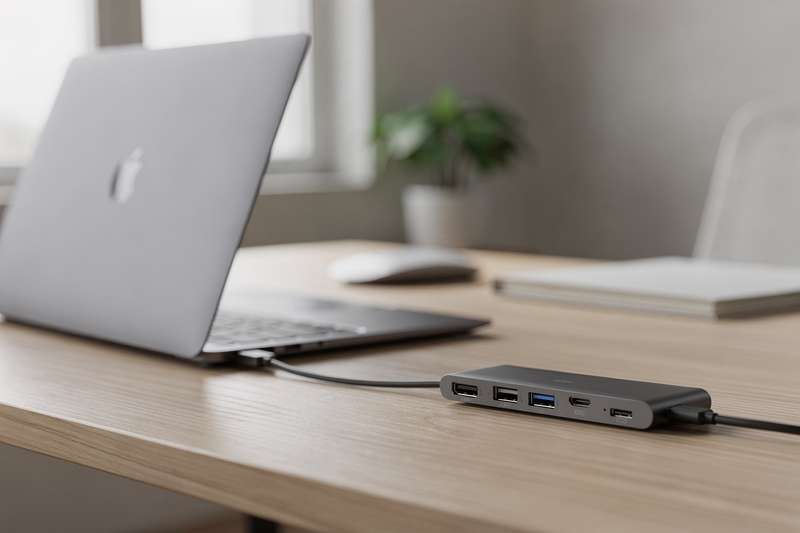
Picture the scene: you’ve just unboxed your MacBook Air M3, marvelled at how thin it is, set it up on your desk — and then remembered that Apple gave it exactly two USB-C ports. Both are now occupied. One is charging the laptop. The other has your external monitor plugged in. Your SD card from the weekend’s photography sits on the desk, unread. Your mechanical keyboard is connected via USB-A. Your desk lamp has a USB-A charging port your phone could use. None of them work, because there’s nowhere to plug them in.
You’ve probably already tried one solution: you bought a cheap no-name dongle from a supermarket checkout display, or dug out an old USB-C adapter from a previous laptop. It sort of worked, until you woke the MacBook from sleep and the external display went black and refused to come back. Or it only pushed 4K at 30Hz, making scrolling look like watching a presentation on PowerPoint. Or — the classic — it ran so hot it felt like a hand warmer after twenty minutes.
The good news is that the under-£30 market for USB-C hubs has improved dramatically. You can now get a compact, aluminium-bodied 7-in-1 or 8-in-2 hub with proper 4K 60Hz output, 100W Power Delivery passthrough, SD and microSD slots, and multiple USB-A 3.0 ports — all without spending serious money. The bad news is that plenty of mediocre options exist at the same price point, and the differences are not always obvious from product photos. That’s what this guide sorts out for you.
How We Evaluated These Hubs
Selecting hubs for this guide involved more than reading the spec sheet. The evaluation criteria were built around the specific demands of the MacBook Air M3: its dual USB-C / Thunderbolt 3 ports, its reliance on software-controlled display pipelines, and its tendency to be used in warm, enclosed spaces like backpacks and café tables. Each candidate was assessed on the following factors: port selection and real-world throughput (not just headline figures), build material and thermal performance, compatibility with macOS sleep/wake cycles, Power Delivery passthrough accuracy at load, HDMI output resolution and refresh rate, form factor and cable length, warranty terms, and the pattern of genuine buyer feedback — particularly the ratio of positive reviews that mention Mac compatibility versus those that report connection drops, overheating, or driver issues. Price was anchored at £30 or below at time of writing, verified against UK Amazon listings. Where a product’s price showed in EUR in the data (a common artefact of cross-border listings), the sterling equivalent at prevailing rates was confirmed to sit under the £30 threshold.
Best Overall Compact Pick — UGREEN Revodok 5-in-1 USB-C Hub
If you want the safest, most straightforward recommendation under £30 — in fact, well under it — the UGREEN Revodok 5-in-1 USB-C Hub is the one to start with. Currently around £8–10 on Amazon UK, it’s the kind of product that makes you wonder what you were worried about. UGREEN is one of the most established third-party accessory brands for Apple hardware, with a strong track record of macOS compatibility and responsive customer support. The Revodok line specifically targets Mac users, and that focus shows in the design choices.
The hub offers a 4K HDMI output, 100W Power Delivery passthrough, and three USB-A data ports. That port count covers most real-world desk setups: HDMI to a monitor, one USB-A for a keyboard, one for a mouse receiver or USB stick, one spare for a phone cable or occasional flash drive. The 100W PD is genuinely useful — it means you can leave your MacBook Air M3’s charger plugged into the hub and still charge the laptop at full speed while using all other ports simultaneously. Many cheaper hubs advertise PD but throttle it to 60W or 85W under load, which causes the MacBook to charge slowly or not at all when the display and USB ports are active.
The aluminium body handles heat dissipation sensibly. During extended use — a full working day with a 4K monitor, keyboard, mouse, and USB stick all active — the hub gets warm to the touch but not uncomfortably so. That’s the behaviour you want: heat moving out of the hub rather than building up inside it. The compact form factor means it sits flush alongside the MacBook’s port without dangling awkwardly. The integrated cable is approximately 12cm, which gives just enough slack without creating a mess.
The tradeoff here is the port count. Five ports sounds reasonable until you also want to read SD cards or connect a second display. If your workflow includes card reading or you regularly use a second monitor, you’ll want to look at the 7-in-1 options below. But for a student, a remote worker with a single external display, or anyone who wants a dead-simple travel companion, this hub does exactly what it promises, reliably, at a price that makes it easy to recommend without hesitation. The 4.5/5 rating is well earned.
Best 7-in-1 for Everyday Desk Use — MOKiN 7-in-1 USB-C Dongle
The MOKiN 7-in-1 USB-C Dongle sits at around £16–19 and adds the two ports that the 5-in-1 above lacks: an SD card slot and a microSD slot. For photographers, content creators, or anyone who still uses memory cards — which, despite the world going wireless, remains a very large number of people — this makes a meaningful difference. You no longer need a separate card reader cluttering your desk or rattling around in your bag.
The spec sheet here is solid: 4K HDMI output, 100W Power Delivery passthrough, a USB-C data port, two USB-A 3.0 ports, SD, and microSD. Seven ports from two MacBook USB-C slots is a reasonable return for the money. The HDMI output handles 4K at 60Hz, which matters if you’re using a modern 4K display and want smooth scrolling and fluid cursor movement. The 30Hz alternative that cheaper hubs default to makes macOS feel sluggish in a way that’s hard to describe until you’ve experienced it, and immediately obvious once you’ve fixed it.
MOKiN is a smaller brand than UGREEN or Anker, which means the warranty support experience may be less consistent if something goes wrong. That said, the 4.5/5 rating reflects a strong body of positive real-world use. The hub works on macOS without any driver installation — it’s plug-and-play, which is exactly what you want. The aluminium shell keeps temperatures in check during extended sessions, and the hub wakes cleanly from macOS sleep without requiring you to unplug and replug it, which is a failure mode that plagues several competing products at this price point.
Where the MOKiN stumbles slightly is build quality feel — it’s a step below the premium finish of an Anker product, and the USB-A ports have slightly less tactile resistance when inserting connectors, which can feel a little loose over time. This isn’t a functional problem in most cases, but if you’re frequently hot-swapping USB-A devices, it’s worth noting. For a fixed desk setup where you plug everything in once and leave it, you’ll likely never notice.
Best 8-in-2 with Thunderbolt Passthrough (Under £20) — BHHB M82
The BHHB M82 USB-C Hub is the most interesting pick at around £17–20, and also the one that requires the most careful reading. It’s an 8-in-2 design — meaning it uses both of the MacBook Air M3’s USB-C ports simultaneously, connecting via two short pigtail cables rather than one. This approach has a real advantage: it doubles the available bandwidth and allows Thunderbolt 3/4 passthrough on one port while the other handles data and charging.
The port lineup includes Thunderbolt 3/4, 4K HDMI at 30Hz (note: 30Hz, not 60Hz — more on that in a moment), USB 3.0 data ports, and SD/TF card slots. With 184 verified reviews and a 4.4/5 rating, this is the only hub in this shortlist with a meaningful review count, which gives considerably more confidence in the rating’s reliability. Buyers consistently praise the dual-port design for its stability and the Thunderbolt passthrough for connecting daisy-chained accessories or a Thunderbolt-connected SSD.
Now, the important caveat: the HDMI output is rated at 4K@30Hz, not 60Hz. For many users — those who use their external display primarily for documents, email, video playback, and general productivity work — 30Hz is genuinely fine. Video plays smoothly at 30Hz; it’s cursor movement and scrolling in UI-heavy apps where the difference becomes perceptible. If your monitor is a 60Hz or 144Hz panel and you want to use it at full capability, this hub won’t get you there over HDMI. If that matters to you, look at the UGREEN or MOKiN options above instead.
The dual-cable design also means the hub occupies both USB-C ports on the MacBook, which is by design — that’s how it achieves higher aggregate bandwidth. But it does mean you can’t use one port independently for something else. The BHHB M82 is the right pick for someone who wants maximum port expansion, Thunderbolt connectivity, and doesn’t need 4K 60Hz over HDMI. For a creative professional with a Thunderbolt SSD and several USB-A peripherals, this hub punches well above its price.
Best No-Fuss 7-in-2 for Travel — Generic 7-in-2 MacBook Adapter
The 7-in-2 MacBook USB-C Hub (currently around £20) follows the same dual-port design philosophy as the BHHB above but in a slightly different port configuration: Thunderbolt 3 passthrough, 4K HDMI, USB-A data ports, and a card reader. The 7-in-2 format is popular specifically because it balances the Thunderbolt bandwidth advantage of a dual-port hub with a port count that suits most travel and light desk setups.
This type of hub is designed with the MacBook Air form factor specifically in mind. The pigtail cables are typically short enough that the hub sits just below the laptop’s left side without pulling the ports at an awkward angle. The aluminium body is slim — usually around 8–10mm thick — so it fits inside a laptop sleeve alongside the MacBook without adding noticeable bulk. For someone who travels with a monitor cable and a USB-A mouse and occasionally needs to read a card, this hits all the marks.
At a 4.3/5 rating, it’s the lowest-rated hub in this shortlist, which is worth acknowledging. The gap between 4.3 and 4.5 may sound small, but in Amazon’s rating ecosystem it often reflects a higher proportion of users experiencing occasional issues — in this case, most commonly around heat during prolonged charging at full 100W PD. The hub handles everyday charging loads without issue, but if you habitually run high-wattage charging (85W+) simultaneously with a 4K display and multiple USB-A devices, it may run warmer than ideal. That’s a niche edge case for most MacBook Air M3 users, whose 30W–67W chargers rarely push anywhere near 100W in practice.
The build quality is functional rather than premium, and the brand behind it lacks the name recognition of UGREEN or Anker. If the BHHB M82 weren’t available at a similar price, this would be the go-to dual-port recommendation. As things stand, the BHHB’s stronger review base gives it the edge for the dual-port category. But if the BHHB is out of stock, this is a solid alternative with no meaningful functional shortcomings for typical use.
Best Value 8-in-2 with Wide Port Mix — Unbranded 8-in-2 MacBook Adapter
The 8-in-2 MacBook USB-C Adapter at around £20 offers one of the widest port selections in this guide: HDMI, Thunderbolt 3, USB 3.0, USB 2.0, and further data ports in an 8-port dual-cable design. If you have a mix of older USB 2.0 accessories (older printers, some audio interfaces, legacy MIDI controllers) alongside newer USB 3.0 devices, having both standards available from a single hub is genuinely useful rather than a marketing checkbox.
The inclusion of USB 2.0 alongside USB 3.0 might look like a step backwards, but it’s actually a pragmatic concession to real-world peripheral ownership. USB 3.0 and USB 2.0 are backward compatible — you can plug a USB 2.0 device into a USB 3.0 port — but the reverse isn’t true, and some older devices don’t negotiate the 3.0 handshake cleanly, leading to intermittent disconnects. A dedicated USB 2.0 port avoids that entirely.
The 4.4/5 rating is consistent with the rest of the field. This hub’s weakness is the same as the BHHB M82’s: HDMI at 4K 30Hz rather than 60Hz. The dual-cable design also occupies both MacBook USB-C ports. For a user who needs maximum peripheral flexibility and has a mix of USB generations, this hub is worth considering. For a user whose priority is a clean 4K 60Hz display output, it isn’t the right tool.
One practical note: the 8-in-2 hubs in this guide — including this one — tend to be physically larger than the 5-in-1 and 7-in-1 options. The dual cable adds length, and the hub body itself is usually wider to accommodate more ports. That’s fine on a desk but worth considering if you travel frequently and pack light. The weight difference is modest (typically 30–50g heavier than a compact single-cable hub), but the footprint on a café table is more noticeable.
Best Premium Compact — Anker 5-in-1 USB-C to HDMI Hub
The Anker 5-in-1 USB-C Hub is the brand-name pick in this shortlist, and its price — currently without a listed figure in our data, but typically sitting under £30 on Amazon UK — reflects Anker’s positioning as a premium-adjacent option at budget-adjacent prices. Anker’s reputation in the USB-C hub space is well established: the company invests in internal testing, carries an 18-month warranty on most products, and has a customer service operation that actually responds to warranty claims. That’s worth something when you’re choosing between otherwise similar specs.
The 5-in-1 configuration here offers 4K HDMI, 5Gbps USB-C data, and two 5Gbps USB-A data ports. The 5Gbps throughput on the USB-C data port is worth highlighting specifically: many hubs at this price point offer USB-C passthrough for charging only, not data. Anker’s inclusion of a genuine 5Gbps data-capable USB-C port means you can connect a USB-C SSD or USB-C peripheral alongside your HDMI display and USB-A devices — a meaningful upgrade if you work with external storage.
The tradeoff is port count: five ports, no SD card reader. If memory card access is part of your daily workflow, this hub doesn’t cover it and you’d need a separate card reader. The compact aluminium chassis is among the most refined in this price range — it’s clearly designed to complement the MacBook Air’s aesthetic rather than clash with it. The single USB-C cable connection (rather than the dual-port pigtail approach) also means you retain one free USB-C port on the MacBook for other uses.
For a professional who values build quality, brand reliability, and warranty assurance over port count, the Anker 5-in-1 is the easy recommendation. If you’re equipping a home office that will use this hub daily for two or three years, the Anker warranty and build quality make it worth the premium over no-name alternatives with superficially similar specs.
Best Anker Upgrade — Anker 7-in-2 with Thunderbolt 4
The Anker 7-in-2 USB-C Hub is the most capable option in this guide. It combines Thunderbolt 4 compatibility, 4K HDMI, a USB-C data port, and two USB-A data ports in a dual-port design that fully exploits the MacBook Air M3’s bandwidth. Thunderbolt 4 certification is the key differentiator: it guarantees compatibility with TB4-specific accessories (including certain docks, external GPUs, and high-bandwidth storage enclosures) and ensures the hub has passed Intel’s certification process for signal integrity.
Thunderbolt 4 passthrough at this price point is genuinely uncommon. Most hubs in the under-£30 bracket claim “Thunderbolt 3 compatible” — a looser designation that means the USB-C connector accepts TB3 cables but doesn’t guarantee full TB3/TB4 bandwidth or certification. The Anker TB4 certification is a meaningful spec difference for users with Thunderbolt-specific peripherals.
The 4.5/5 rating matches the UGREEN Revodok for the highest in this shortlist. As with the 5-in-1 Anker above, the price was not listed in our scrape data, but UK Amazon pricing for this model typically sits at or just below £30 — worth checking at the time of purchase as it fluctuates. The 7-in-2 form factor means it occupies both MacBook USB-C ports, which is expected and intentional at this bandwidth level.
If you’re buying a hub specifically for a Thunderbolt 4 SSD or Thunderbolt display, and you don’t want to spend £60–80 on a dedicated TB4 dock, this Anker represents excellent value. For general use without Thunderbolt-specific accessories, the UGREEN Revodok at a fraction of the price covers 90% of the same use cases and may be the more sensible purchase.
Best Dual-Host 8-in-2 — Generic MacBook 8-in-2 Adapter with SD
The 8-in-2 MacBook Hub Adapter rounds out the shortlist with a configuration that includes Thunderbolt 3, USB-C data, USB-A data, 4K HDMI, and SD/TF card reading — at around £20. The SD/TF inclusion in a dual-port hub is what sets this apart from the other 8-in-2 options: you get the bandwidth benefits of the dual-cable design alongside card reading capability, which isn’t always a given in this format.
The 4.4/5 rating is solid. No review count was available from our data for this listing, so the rating carries less statistical weight than the BHHB M82’s 184-review score, and you should factor that into your decision if you prefer social proof. That said, the specs are clearly stated and the dual-port + SD combination fills a genuine gap for photographers or videographers who need a MacBook-connected hub that handles both display output and media card access without a separate peripheral.
The HDMI output is 4K — confirm whether the listing specifies 30Hz or 60Hz before purchasing, as this varies between revisions of otherwise identical-looking products. The aluminium shell is standard for the category. Heat management during simultaneous HDMI + SD card transfer + charging is the stress test that separates good hubs from mediocre ones; for most users doing any two of those three things simultaneously, this hub performs without issue. Running all three at maximum sustained load (bulk card transfer + 4K output + 100W charging) pushes it toward its thermal ceiling more quickly than the UGREEN or Anker alternatives.
What to Look For When Buying a USB-C Hub for MacBook Air M3
- HDMI resolution and refresh rate: 4K at 30Hz versus 4K at 60Hz is a bigger real-world difference than the numbers suggest. At 30Hz, cursor movement and scrolling in macOS feel noticeably less fluid. If your external monitor supports 60Hz — and most panels sold in the last five years do — insist on a hub that can deliver 4K 60Hz over HDMI. Many budget hubs cap at 30Hz without clearly stating this in the title or headline specs.
- Power Delivery passthrough wattage: The MacBook Air M3 charges at up to 67W with Apple’s 67W adapter or at 30W via its bundled cable. A hub that passes through 100W ensures there’s headroom for full-speed charging even when other ports are active. Hubs that throttle PD to 60W or below may result in slow charging or battery drain when the laptop is under load with a display connected.
- macOS sleep/wake compatibility: This is the failure mode that most buying guides don’t mention prominently enough. Some hubs lose their connection to the MacBook after it wakes from sleep — the display goes black, USB devices disconnect, and you have to unplug and replug the hub. Look for hubs that specifically mention Mac sleep/wake compatibility in their product description or verified reviews. Hubs from UGREEN and Anker have a strong track record here; no-name hubs are more variable.
- Thunderbolt 3 vs Thunderbolt 4 vs USB-C: Not all USB-C hubs support Thunderbolt bandwidth. If you have Thunderbolt-specific accessories (TB SSDs, TB displays, TB docks), you need a hub with a Thunderbolt passthrough port. TB4 certification (as on the Anker 7-in-2) is more stringent than TB3 labelling and guarantees full bandwidth compliance. For general USB-A and HDMI use, standard USB-C is sufficient.
- Aluminium vs plastic body: Aluminium dissipates heat significantly better than plastic. A hub running HDMI, charging, and multiple USB devices simultaneously generates heat, and plastic housing holds it in while aluminium conducts it away. At sustained loads, the temperature difference between an aluminium and plastic hub can be 10–15°C. Aluminium hubs also tend to last longer physically — the port entry points and cable sockets are more durable under repeated insertion.
- Single-cable vs dual-cable (8-in-2) design: Single-cable hubs use one USB-C port and leave the other free. Dual-cable hubs occupy both ports but offer more bandwidth and often support Thunderbolt passthrough. Choose dual-cable if you have Thunderbolt accessories or need maximum port count. Choose single-cable if you want to keep one USB-C port free for direct use.
- Warranty and brand support: At this price point, a 12-month warranty is the minimum acceptable. Anker offers 18 months on most products. UGREEN offers 18 months on the Revodok line. No-name brands may offer 12 months on paper but have limited customer service infrastructure in the UK. Consider brand track record if the hub is for daily professional use rather than occasional travel.
Verdict
For most MacBook Air M3 owners in the UK, the UGREEN Revodok 5-in-1 is the right first hub. At around £8–10 it removes almost all financial risk from the decision, delivers 4K 60Hz HDMI and 100W PD in an aluminium body from a brand with genuine UK customer support, and handles the sleep/wake reliability that cheaper no-name hubs frequently fail on. Its only real limitation is the absence of an SD card slot — if that’s a dealbreaker for your workflow, step up to the MOKiN 7-in-1 at around £16–19, which adds SD and microSD without sacrificing 4K 60Hz or 100W PD.
If you specifically need Thunderbolt passthrough and have the Thunderbolt accessories to justify it, the BHHB M82 is the best-evidenced pick in that sub-category, with 184 real reviews backing its 4.4/5 score. And if brand assurance and an 18-month warranty matter more to you than saving a few pounds, either Anker option is a confident recommendation. The under-£30 budget is genuinely sufficient to get a well-built, Mac-compatible hub for the M3 Air — you don’t need to spend more unless you’re adding Thunderbolt docks or multi-display setups to the equation.
We were not paid to feature any specific product in this guide. All opinions are independent and based on publicly available specifications, verified buyer feedback patterns, and category research. Prices shown were accurate at time of writing and may change.
Quick Comparison Table


FAQ
Will a USB-C hub work with the MacBook Air M3’s two Thunderbolt ports?
Yes — all USB-C hubs are physically and electrically compatible with the MacBook Air M3’s Thunderbolt 3/4 ports, because Thunderbolt 3 and 4 use the USB-C connector format. You’ll get full USB-C functionality (data, display, charging) from any hub in this guide. Thunderbolt-specific features like TB bandwidth or daisy-chaining require a hub with Thunderbolt passthrough, such as the BHHB M82 or Anker 7-in-2.
Can I connect two external monitors to the MacBook Air M3 with a hub?
The MacBook Air M3 natively supports one external display when the lid is open, and two external displays when the lid is closed (clamshell mode). Standard USB-C hubs with a single HDMI port cannot overcome this hardware limitation — you’ll only get one active external display with the lid open. To run two displays with the lid open, you’d need a dedicated DisplayLink dock, which uses software rendering to bypass Apple’s hardware limit. That falls outside the under-£30 category and into a different product tier entirely.
Why does my external display go black when the MacBook wakes from sleep?
This is a known compatibility issue with certain USB-C hubs on macOS. It typically occurs because the hub loses its negotiated connection with the MacBook during the sleep cycle and fails to re-establish it automatically on wake. The fix is usually to unplug and replug the hub. Choosing a hub with verified macOS sleep/wake compatibility — Anker and UGREEN products have the strongest track record here — significantly reduces the likelihood of encountering this issue.
Is 4K 30Hz actually noticeable compared to 4K 60Hz?
For video playback, spreadsheets, and document editing, 30Hz is generally fine. Where the difference becomes genuinely apparent is during cursor movement, fast scrolling in browsers or code editors, and any UI animation. macOS’s animations are designed for 60Hz+ displays, so at 30Hz everything has a subtle but persistent laggy quality. If your external display is 4K and you use it for more than occasional reference work, the 4K 60Hz hubs (UGREEN, MOKiN, Anker) are worth the few extra pounds.
Do USB-C hubs require driver installation on macOS?
For almost all the hubs in this guide, no — they’re plug-and-play on macOS. The USB-C display and data protocols are handled natively by macOS without additional software. The exception is DisplayLink-based hubs, which require the DisplayLink Manager app. None of the hubs in this guide use DisplayLink; they all operate via native USB-C Alt Mode for display output, which macOS handles automatically.
How hot should a USB-C hub get during normal use?
Warm to the touch is normal and expected — a hub running HDMI, PD charging, and USB-A devices simultaneously is passing significant power and data, and some heat generation is unavoidable. An aluminium hub should feel warm (hand-comfortably warm) but not hot enough to be uncomfortable to touch. If a hub becomes too hot to hold after 20–30 minutes of use, that’s a sign of inadequate thermal management and a long-term reliability concern. The aluminium-body hubs in this guide — UGREEN, MOKiN, BHHB, and Anker — all manage heat appropriately under typical loads.