When Your Webcam Makes You Look Like a Suspect in a Police Interview
Picture the scene: you’ve spent months assembling a streaming setup — decent microphone, green screen, a capable PC — and you fire up OBS, go live, and your viewers immediately tell you that you look grainy, shadowed, and vaguely sinister. The ceiling light is behind you, casting a hard shadow across your face. Your ring light from two years ago is sitting in the corner gathering dust because it takes up half the desk and blinds you every time you glance at it. You’ve tried repositioning your desk lamp, angling a torch, even boosting webcam gain in software until the noise is unbearable.
The problem isn’t your webcam — it’s the light. Specifically, the lack of clean, forward-facing, glare-free illumination that sits right where you need it: at eye level, pointed at your face, without eating into your desk space or bouncing off your monitor. A monitor-mounted LED light bar solves exactly this, and if you haven’t tried one, the improvement to your stream quality will feel immediate and significant. This guide cuts through the noise and tells you exactly what to buy, depending on your budget and setup.
How We Evaluated These Picks
To narrow down the best monitor-mounted LED light bars for streaming in the UK, the evaluation focused on five core criteria: illumination quality (colour accuracy, CRI rating, and the presence of flicker-free dimming), colour temperature range (a wider Kelvin range gives you more flexibility across different environments and times of day), build quality and mounting security (a light bar that wobbles or slips mid-stream is useless), ease of control (physical buttons, touch panels, and app or remote options all have real tradeoffs), and value relative to price. Research drew on verified buyer feedback patterns across UK Amazon listings, manufacturer specifications, and cross-referencing independent creator reviews. Priority was given to products with strong review volumes indicating real-world reliability, not just impressive spec sheets. Each pick below addresses a specific use case rather than a universal ranking — the right choice depends on your room, workflow, and how often you stream.
Best Budget Pick (Under £25): The No-Frills USB Monitor Bar
If you’re new to monitor-mounted lighting and not yet ready to commit to a premium product, a basic USB-powered light bar under £25 is a low-risk way to see the difference proper forward-facing illumination makes to your stream. These entry-level options typically offer between 50 and 80 LED beads, a touch-controlled dimmer, and a simple clip mount that slides over the top of most standard monitors. Don’t dismiss them as toys — for small rooms with reasonable ambient light, they produce a measurable improvement to webcam output.
What you’re looking for at this price point is an asymmetric optical design: the bar should direct light downward and forward onto your face and desk, not backward onto the screen itself. This single feature separates a decent budget bar from a frustrating one. If light bounces back off your display, you’ll get a washed-out, glare-ridden image that defeats the purpose entirely. Look for a CRI (Colour Rendering Index) of at least 85 — ideally 90+ — and at least three colour temperature steps (cool, neutral, warm) so you can match the bar to your room’s ambient light.
The main tradeoffs at this tier are brightness ceiling and build quality. A sub-£25 bar will struggle to light you adequately in a large, dark room or if your webcam sits more than 1.5 metres away. The clip mechanisms are often plastic and can feel loose on thinner monitor bezels. Colour accuracy also tends to suffer slightly compared to mid-range options — what looks like a neutral white on the bar’s label may skew slightly cool or warm in practice. For a small bedroom setup with some natural light filling in, though, these are a solid starting point.
Avoid models that advertise only USB-A power with no mention of output wattage — anything below 5W will produce noticeably dim results. Also steer clear of bars without any dimming function at all; flat, unadjustable output is surprisingly harsh on camera and gives your viewers that overexposed, blown-out look.
Best for Dual-Monitor Streamers: Twin Bar System with Remote Control
Running a dual-monitor streaming rig presents a specific lighting challenge: a single bar positioned on one screen will light your face unevenly, creating a shadow on the side furthest from the light. A dual-bar system — two coordinated light bars, one per monitor — solves this by wrapping light around you symmetrically, which is how studio lighting rigs work for a reason. The result on camera is a much more balanced image with fewer harsh shadows under your jaw and nose.
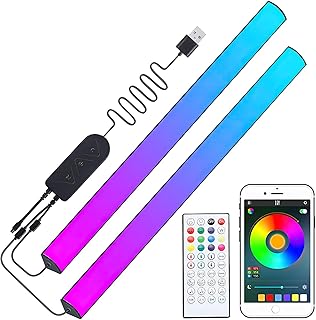
The NEEWER Basics 12W Dual Monitor Light Bar (available on Amazon UK) is a strong example of what this category can offer. It packs 40 built-in LEDs per bar, five colour temperature settings, and ten brightness levels — enough granularity that you can fine-tune the light to exactly match the tone of your stream’s aesthetic. The wireless remote is a useful practical feature rather than a gimmick: being able to adjust brightness or colour temperature mid-stream without reaching across your desk or tabbing out of OBS is a quality-of-life improvement you only appreciate once you’ve had it. The 32-foot remote range is far beyond what most home streamers will ever need, but it does mean the signal is reliable even if you’re sat a bit further back.
The memory function — which recalls your last brightness and colour temperature settings on power-up — is another small but practical touch. You set it once for your usual streaming session, plug in, and you’re ready. Flicker-free output matters more than many streamers realise: even if your eyes adjust to subtle flicker, cameras often don’t, and you may see banding or pulsing artefacts in recordings if the LED driver isn’t properly filtered. Verified buyer feedback on UK listings for this category consistently praises flicker-free performance as one of the first things users notice when switching from cheaper alternatives.
The main limitation here is power delivery: both bars draw from USB ports, which means you’ll be using two USB-A slots (or USB-C, depending on the model variant). If your monitor hub is already crowded with peripherals, plan accordingly. Also bear in mind that fitting two bars requires two monitors with compatible bezels — these clips won’t grip curved screens with very aggressive curvature, so check your monitor’s top edge geometry before purchasing.
Best for Video Conferencing and Streaming Combo: Glare-Eliminating Dual Bar
There’s a growing overlap between the remote worker who needs to look sharp on Teams calls and the part-time streamer who goes live in the evenings. If you fall into both camps, you need a light bar that performs consistently across both use cases — which means clean facial illumination without any screen glare washing out your background, and flexible colour temperature settings that work whether your room is daylight-bright or artificially lit at night.
Products built around glare-elimination technology (sometimes marketed as OptiShield or similar optical diffusion systems) are specifically engineered to address this. The optical design bends the light output so that virtually no illumination spills back onto the monitor surface — it’s all directed forward and downward. This matters for screen-sharing scenarios: if you’re presenting slides or sharing a browser window on a video call, screen glare from your own lighting makes your image look unprofessional and is harder for your audience to read.
Flicker-free dimming in this category is non-negotiable for extended use. If you’re spending four hours a day on video calls plus another two hours streaming, your eyes will notice the difference between a properly filtered LED and one that’s strobing at imperceptible frequencies. High-quality bars in this segment use PWM dimming at frequencies above the threshold of human perception, but you should verify this in the specs or buyer reviews before purchasing.
Tool-free installation is another practical advantage: these bars typically use a tension-clip or over-the-top bracket that requires no adhesive, no screwdriver, and no permanent modification to your monitor. Setup takes under two minutes. The tradeoff is portability versus desk space — a dual-bar system takes up more of your monitor’s top edge and can feel cluttered on a compact desk. If your workspace is already tight, consider whether the single-bar alternatives below might serve you better.
Best Mid-Range All-Rounder: High-CRI Bar with Broad Kelvin Range
Once you move into the £50–£80 bracket, the step up in light quality becomes measurable rather than just subjective. Mid-range monitor-mounted bars in this tier typically feature LED arrays rated at CRI 95 or above, which means skin tones render accurately rather than appearing slightly orange, yellow, or grey on camera. If your stream involves showing products, artwork, or simply your face in detail, colour accuracy at this level is noticeable to your viewers.
What you’re looking for in a mid-range all-rounder is a broad Kelvin range — ideally 2700K (warm, candlelight-adjacent) through to 6500K (cool daylight) — combined with smooth, stepless dimming rather than fixed brightness presets. The difference between 10 fixed brightness steps and smooth continuous control is the difference between getting close to the right output and dialling it in precisely. Smooth dimming is particularly useful when your room’s ambient light changes across a long streaming session as daylight fades in the evening.
Physical control options at this price point usually include a touch panel on the bar itself plus a rotary dial or buttons for colour temperature adjustment, with some models also offering app connectivity for finer control. App control via USB or Bluetooth can be useful for pre-saving lighting presets — for example, one profile for daytime streaming and another for your late-night sessions. Be realistic about whether you’ll actually use app control, though; many streamers set their preferred levels once and never touch them again, making a simple touch panel more than adequate.
The tradeoff in this tier compared to premium options is mounting flexibility. Most mid-range bars use a fixed over-monitor clip without height or tilt adjustment, which means you get the bar positioned at the top of your monitor bezel and that’s it. If your monitor sits very low on your desk and you need the light positioned higher to fill your face evenly, you may find the fixed mount limiting. A monitor arm combined with a mid-range bar can partially solve this by raising the monitor itself, but it’s worth factoring in before purchasing.
Best Premium Pick for Serious Streamers: Full-Spectrum LED with Software Integration
The Logitech Litra Glow sits at the top of the monitor-bar category for streaming, and the engineering behind it is worth understanding rather than taking on faith. Its TrueSoft technology isn’t marketing language for a softbox filter — it refers to a full-spectrum LED array designed to emit light across the complete visible wavelength range, rather than the narrow spikes typical of cheaper LEDs. The practical result is that skin tones, fabric textures, and background details render with noticeably more accuracy, which users can observe directly by comparing footage taken with and without the bar under otherwise identical conditions.
The frameless diffuser panel is the other engineering detail that justifies the price premium. Hard LED point sources create micro-shadows and specular highlights that make faces look textured in unflattering ways — this is why ring lights can make skin look shiny and pored. The Litra Glow’s diffuser spreads light across a large, even surface area, producing the soft, directional fill that portrait photographers spend hundreds of pounds achieving with softboxes and studio flash. You get that output in a unit that clips to your monitor bezel in thirty seconds.
The 3-way adjustable mount — offering height, tilt, and rotation — is a meaningful practical feature. Most monitor-mounted bars are fixed at the top of the bezel and angle only slightly. Being able to tilt the Litra Glow’s head and rotate the arm means you can position the light source to fill your face from a slightly elevated angle, which is both more flattering and more natural-looking on camera than light positioned dead-level with your eyes. Brightness and colour temperature are adjustable through the physical dial on the unit or through Logitech’s desktop software, which integrates with streaming tools for scene-based preset switching.
The honest tradeoff here is price and portability. At £80–£110 on UK Amazon, this is a significant investment compared to budget alternatives, and it draws power via USB, so you’ll lose a port. It’s also strictly a desktop/monitor-mounted tool — there’s no tripod thread or freestanding option. For a streamer who is serious about video quality and streams regularly, the investment is straightforward to justify. If you stream twice a month from a poorly lit bedroom, a £20 USB bar will make a nearly identical visible improvement at a fraction of the cost.
Best for Gaming Setups with Atmosphere: Key Light with App Control
The Logitech G Litra Beam occupies a slightly different position in the market: it’s a key light rather than a pure monitor bar, designed to be positioned alongside your setup rather than clipped directly to the monitor. For gaming streamers who want to create a specific visual atmosphere — dramatic side lighting, colour-matched backlighting, or a consistent branded look — the Litra Beam’s combination of precise directional output and G HUB desktop app integration makes it a capable and well-integrated option.
The 2700K–6500K colour temperature range is the full span you’d want for any streaming context: warm enough to create a cosy late-night gaming atmosphere, cool enough to produce crisp, neutral lighting for tutorial or review content. What sets the Litra Beam apart from generic key lights at similar prices is the TrueSoft full-spectrum LED array, which means that whatever colour temperature you dial in renders accurately rather than drifting toward green or magenta as cheaper LED panels tend to do at the extremes of their range.
G HUB integration is the feature that makes this a compelling choice for streamers already in the Logitech ecosystem. You can link lighting presets to specific game profiles, OBS scenes, or application states — so your stream automatically shifts from warm ambient lighting during a gameplay segment to cooler, brighter light when you switch to a facecam-heavy commentary section. This level of automation takes setup time upfront but pays dividends once configured.
The tradeoff compared to a pure monitor bar is desk footprint and positioning flexibility. The Litra Beam uses an adjustable desktop stand rather than a monitor clip, which means it takes up desk real estate and requires positioning carefully to avoid appearing in frame or creating uneven lighting. The slim design minimises this, but on a compact streaming desk already crowded with a keyboard, headset, and controller, it’s a consideration. It also sits at the premium end of the price bracket — this is a product for streamers who have already solved their basic lighting problem and are now optimising.
Best for Minimalist Desks: Auto-Dimming Sensor Bar
Not every streamer wants to manage lighting manually. If you stream across different times of day, from a room with variable natural light, constantly adjusting brightness to compensate is a real friction point. A monitor bar with an integrated ambient light sensor — auto-dimming functionality — handles this automatically, reading the room’s existing light level and adjusting its output to maintain consistent facial illumination without your intervention.
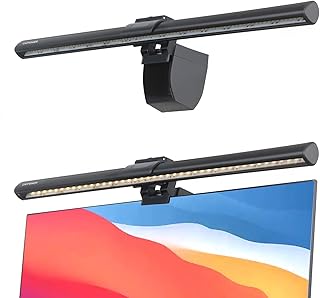
The Quntis Computer Monitor Lamp is a well-regarded example of this category. Its 78 LED bead array delivers uniform illumination across the full width of the bar, which matters for wider desks where uneven output creates a spotlight effect in the centre and dimmer zones at the edges. The asymmetric optical design prevents screen glare — the light is directed downward and forward, not back onto the display. Touch control on the bar itself keeps the interface simple: one tap to toggle power, hold to dim or brighten, which is faster than fumbling with a remote or app when you’re live.
The reduction of short-wavelength blue light output is a feature worth considering if you stream for long periods in the evening. High-intensity blue light is linked to eye strain and disrupted sleep cycles — a bar that limits its blue output without shifting the overall colour toward a heavy orange cast can be more comfortable to work under for extended sessions. Verified UK buyers of products in this category frequently mention reduced eye fatigue as a post-purchase observation, particularly compared to using a laptop screen or phone screen as a fill light.
Where auto-dimming bars fall short is for streamers who need precise, reproducible lighting setups. If you want to nail a specific look for your stream and keep it identical across every session regardless of ambient conditions, manual control gives you that consistency. Auto-dimming introduces variability — a cloud passing outside, a lamp turning on in the next room — that can subtly shift your on-camera appearance between scenes. For casual streamers who prioritise ease over precision, it’s ideal. For those with a specific branded visual identity, stick to manual control options.
What to Look For When Buying a Monitor-Mounted LED Light Bar
- CRI (Colour Rendering Index): Look for CRI 90 or above for streaming. CRI measures how accurately a light source renders colours compared to natural light. Below 85 and skin tones start looking muddy or unnatural on camera — which no amount of webcam settings will fully correct.
- Colour Temperature Range (Kelvin): A range of at least 3000K–6500K gives you enough flexibility to match warm indoor lighting and cool daylight. Fixed colour temperature bars lock you into one look, which may not match your room conditions as they change through the day.
- Flicker-Free Output: LEDs dimmed using low-frequency PWM can flicker in video recordings even when imperceptible to the naked eye. Look for explicit “flicker-free” specification or verified buyer confirmation that recordings show no banding.
- Asymmetric Optics / Anti-Glare Design: The bar must direct light away from the screen surface and toward you. Without asymmetric optics, you’ll get screen glare that appears in frame and makes your monitor unreadable during streaming sessions.
- Mounting Compatibility: Most bars use an over-the-top clip that works on standard flat monitors. Curved monitors, ultra-thin bezels, and monitors with speaker grilles or vents at the top edge can all cause fit problems — check the manufacturer’s compatibility notes and buyer reports before purchasing.
- Brightness (Lumens and Wattage): For a typical home streaming room of 3–4 metres, you want at least 8W output. Larger rooms or darker spaces benefit from 12W+. Don’t rely on lumen figures alone — the optics determine how effectively that output reaches your face.
- Control Interface: Decide whether you want physical touch controls, a remote, app integration, or auto-dimming before shopping. Each has real tradeoffs: touch panels are fast but require reaching to the bar; remotes can be lost; app control offers presets but adds software dependency; auto-dimming is hands-off but sacrifices reproducibility.
Verdict: Which One Should You Actually Buy?
The right pick depends on your specific setup — this guide has evaluated each option against a distinct use case rather than producing a single universal ranking. That said, a few patterns emerge from the category research. If you run a dual-monitor rig, the twin bar system in the £30–£50 range addresses a real and specific lighting problem that a single bar cannot — symmetrical output reduces facial shadowing in a way that is directly visible on camera. If you have a single monitor, the mid-range all-rounder with a high-CRI array and smooth dimming is the smarter choice — it’s the price tier where investment most reliably translates to perceptibly better light quality.
If streaming is your livelihood or a serious side income and you’re prepared to invest properly, the Logitech Litra Glow is the most straightforward recommendation: the TrueSoft full-spectrum array and frameless diffuser produce measurably more accurate light output, and the software integration suits streamers who work with scene-based production workflows. Reserve the Litra Beam for those already embedded in the Logitech G ecosystem who want atmospheric key light control alongside their peripherals.
Start with your room size and ambient light conditions, pick the brightness tier that suits, then choose control style based on how hands-on your streaming workflow actually is.
Editorial note: We were not paid to feature any specific product in this guide. All opinions are independent and based on publicly available specifications, verified buyer feedback patterns, and category research. Prices shown were accurate at time of writing and may change.
Quick Comparison Table




FAQ
Do monitor-mounted LED light bars work with curved monitors?
Many do, but not all. Standard over-the-top clip mounts are designed for flat or gently curved panels. Monitors with a curvature radius of 1800R or tighter often have a top edge geometry that prevents the clip sitting flush. Always check the product listing’s compatibility notes and look at buyer photos for your specific monitor type before purchasing — this is one of the most common sources of return requests in this category.
Will a light bar positioned at monitor height actually light my face properly, or do I need a higher angle?
Monitor-top height works well for most people when the monitor is positioned at or slightly below eye level, which is the ergonomically recommended position anyway. The slight downward angle of the bar’s asymmetric optics means the light falls naturally across the face rather than shining directly into your eyes. If you find the light feels flat or creates unflattering under-eye shadows, raising the monitor on a stand or arm by 5–10cm usually corrects this.
What colour temperature setting should I use for streaming?
Around 4000K–5000K is a practical starting point for most home streaming setups — it’s neutral enough to render skin tones accurately without looking either clinical or overly warm. If your room has strong warm ambient light (tungsten bulbs), nudge toward the cooler end to compensate. If you stream in a bright room with lots of natural daylight, a warmer setting will feel less harsh. The key is to balance the bar’s output with your ambient light rather than fighting it.
Is a monitor bar better than a ring light for streaming?
For desk-based streaming, yes — in most practical cases. Ring lights take up significant desk space or require a separate stand, and the circular catchlight they create in eyes is visually distinctive and increasingly associated with low-production-value content. Monitor bars sit out of the way, create a natural rectangular catchlight (closer to what studio lighting produces), and direct all their output at your face rather than spilling into the room. The only scenario where a ring light maintains an edge is for close-up camera work where you specifically want even, wraparound facial illumination at very short distances.
How much wattage do I actually need for streaming lighting?
For a standard bedroom or home office streaming setup, 8–12W of LED output is sufficient for 1–2 metres of working distance. If your desk is in a large, dark room, or if your camera sits further back for a wider shot, aim for 12W or above. Wattage alone isn’t the whole story — the optics determine how effectively that power reaches your face, so a well-designed 8W bar with quality optics will outperform a poorly designed 15W unit in real-world use.
Can I use a monitor-mounted light bar for photography or product photography, not just streaming?
You can use it as a fill light for close-range product photography, and a high-CRI bar (95+) will render product colours accurately. However, monitor bars are too small and too fixed in position to serve as a primary light source for most photography scenarios. They work well as supplementary fill to reduce shadows when combined with a window or larger soft box. For serious product photography, a dedicated LED panel with a broader face and adjustable stand will give you more control over light direction and coverage.